
Introduction
The strategy engine of Keysecure provides robust support for your MPC system. Users can set advanced strategies to manage wallets, with these advanced strategies taking precedence over basic strategy, aimed at controlling transaction risk scenarios. Users can easily configure user roles, control actions, and approval workflows for each wallet. Once a transaction strategy is formulated, any transfer or operation will not be executed without approval.Operation Process
View and manage your advanced strategies1
Log in and Access the Advanced Strategies List
Use the Keysecure App to scan and log in to the MPC wallet web version, open the [Policy Engine], and select the [Advanced Strategy] module for the wallet.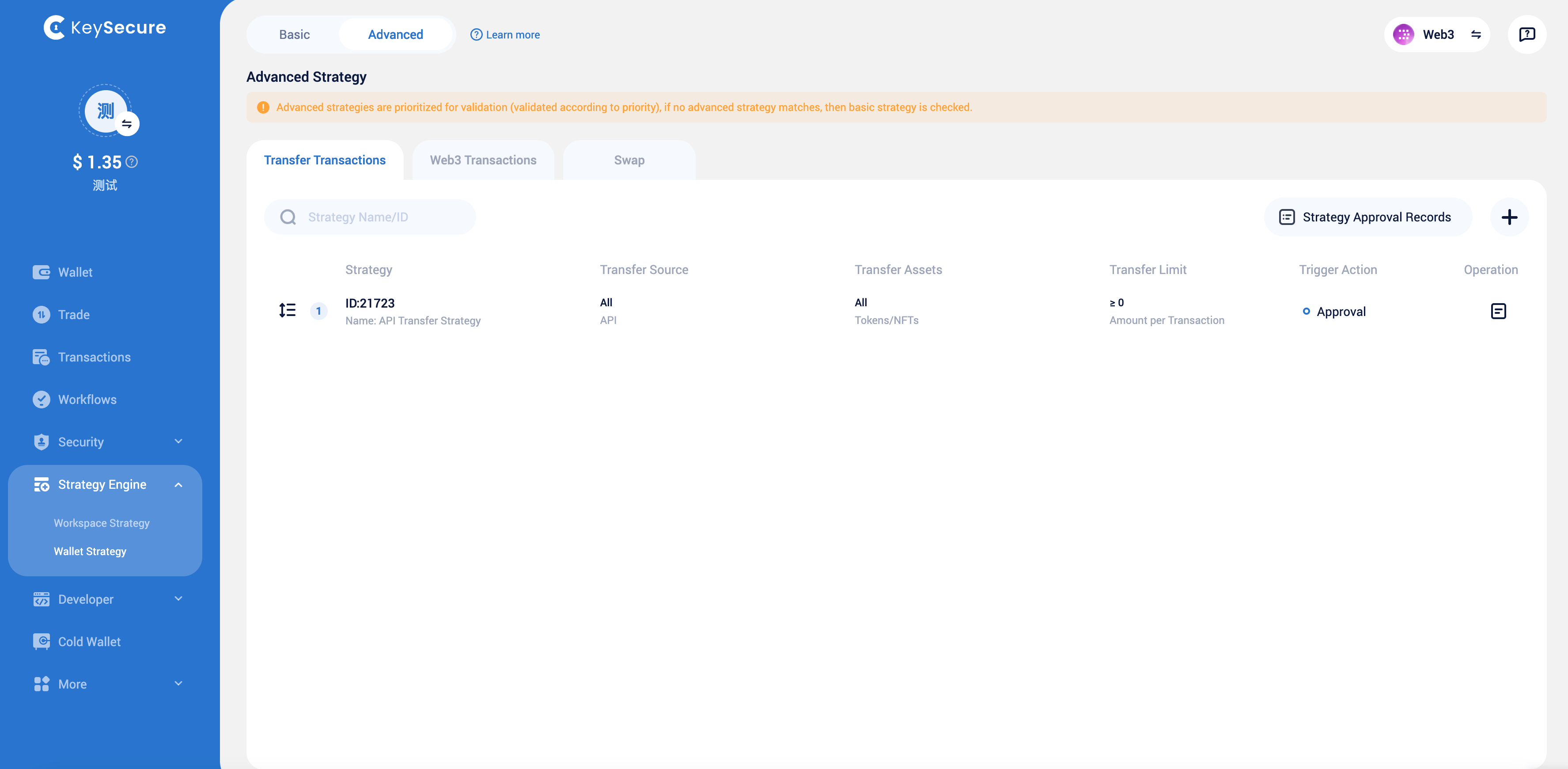
2
Manage Advanced Strategies
Select the advanced policy you want to edit, then perform edit or delete operations. You can also adjust the priority of Advanced Strategies by clicking the arrows on the list page.
Additionally, you can click the add policy button to add more controls to your wallet.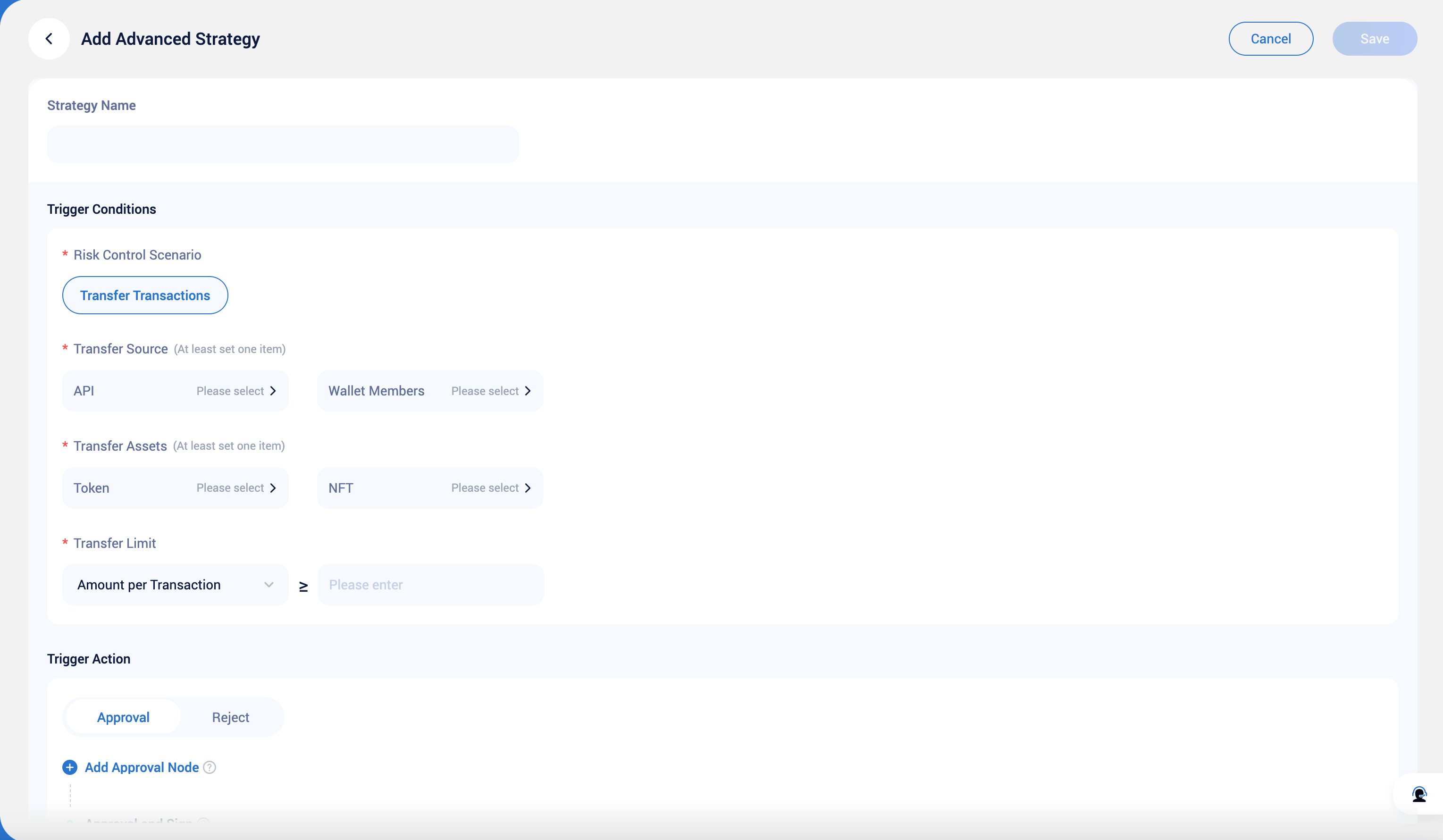
3
Edit Strategy Details
1
Add and Configure Transfer Strategies
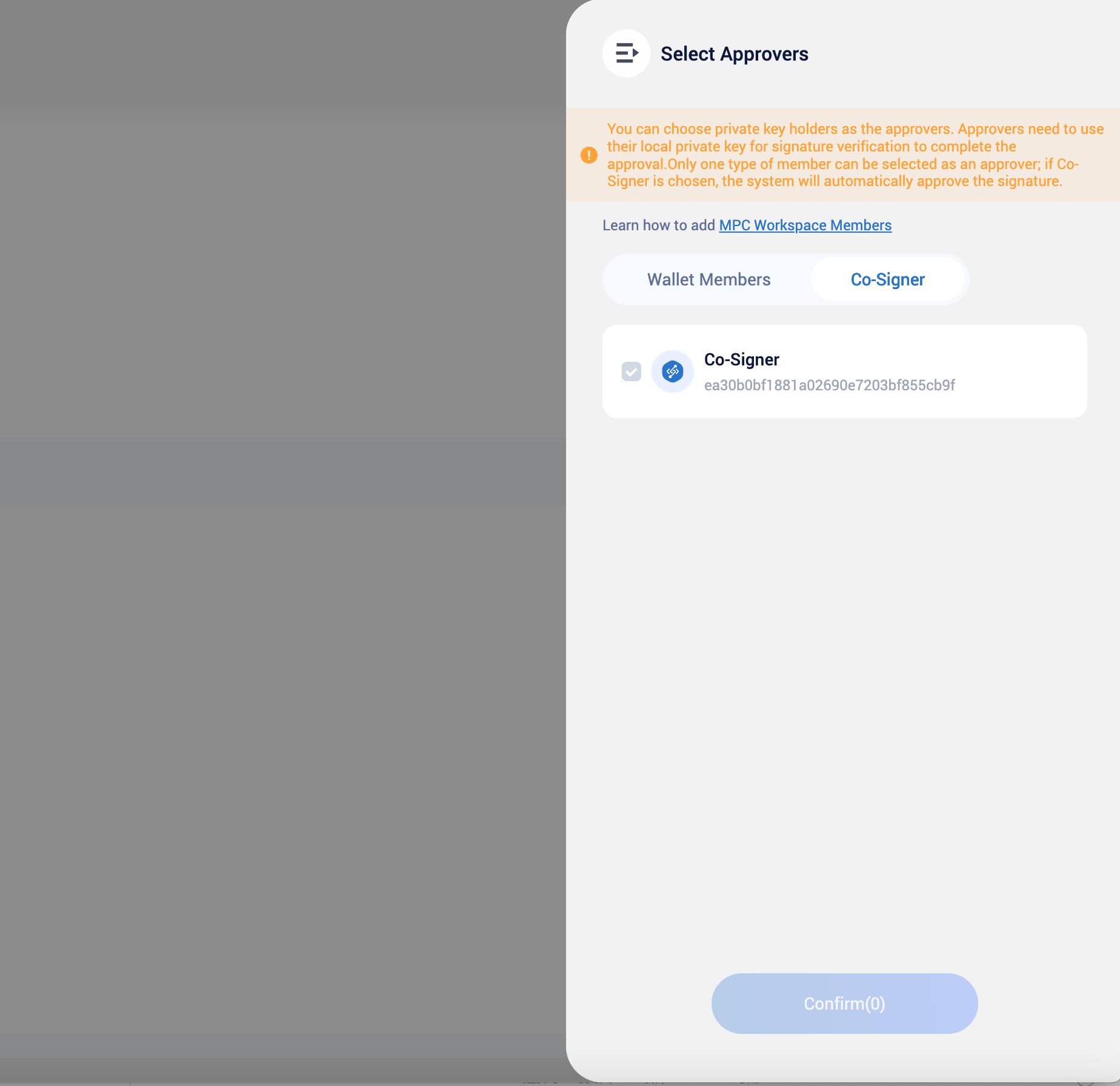
**If you choose to edit Advanced Strategy - Transfer Transactions, you can configure the following parameters:Strategy Trigger Conditions: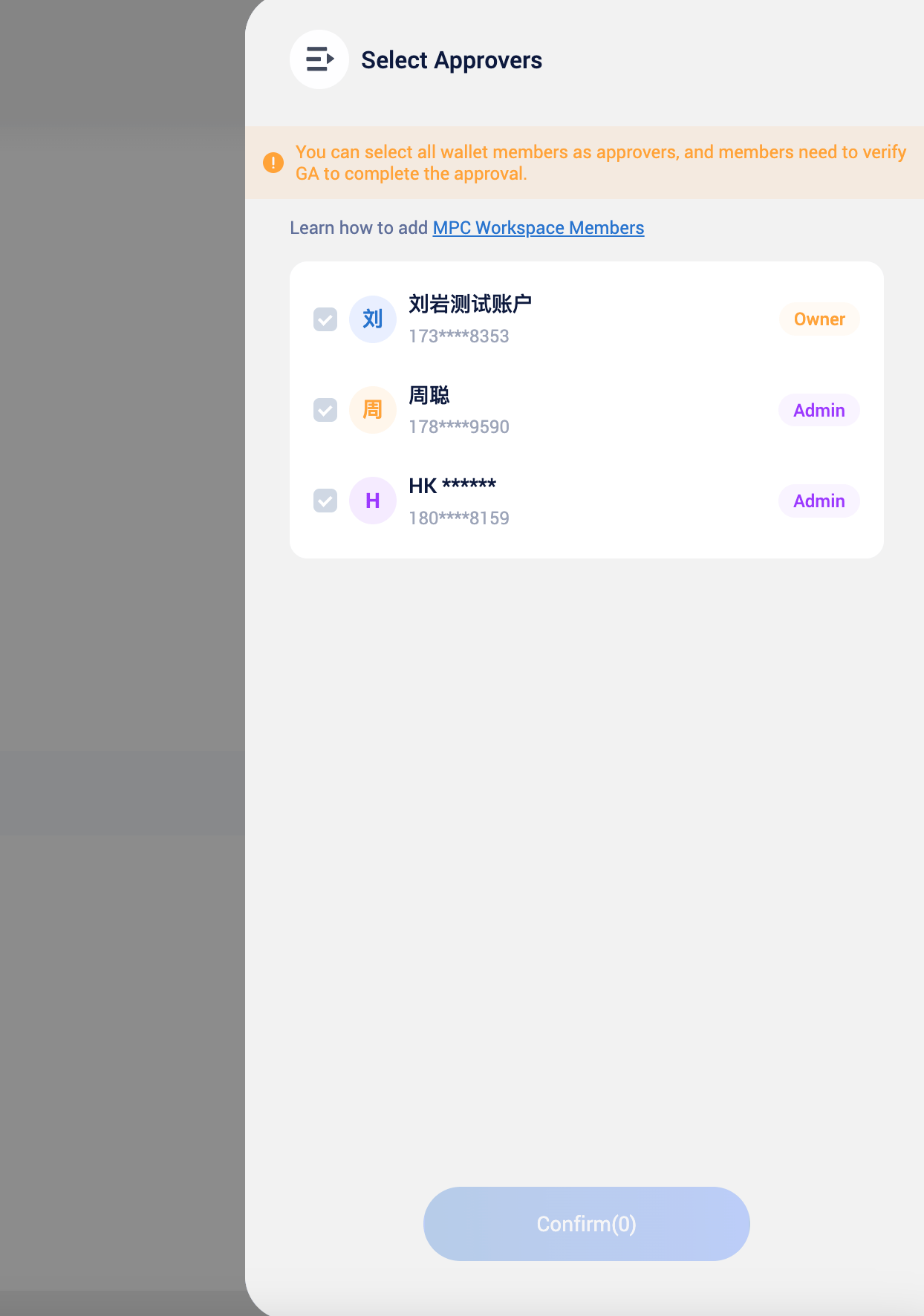
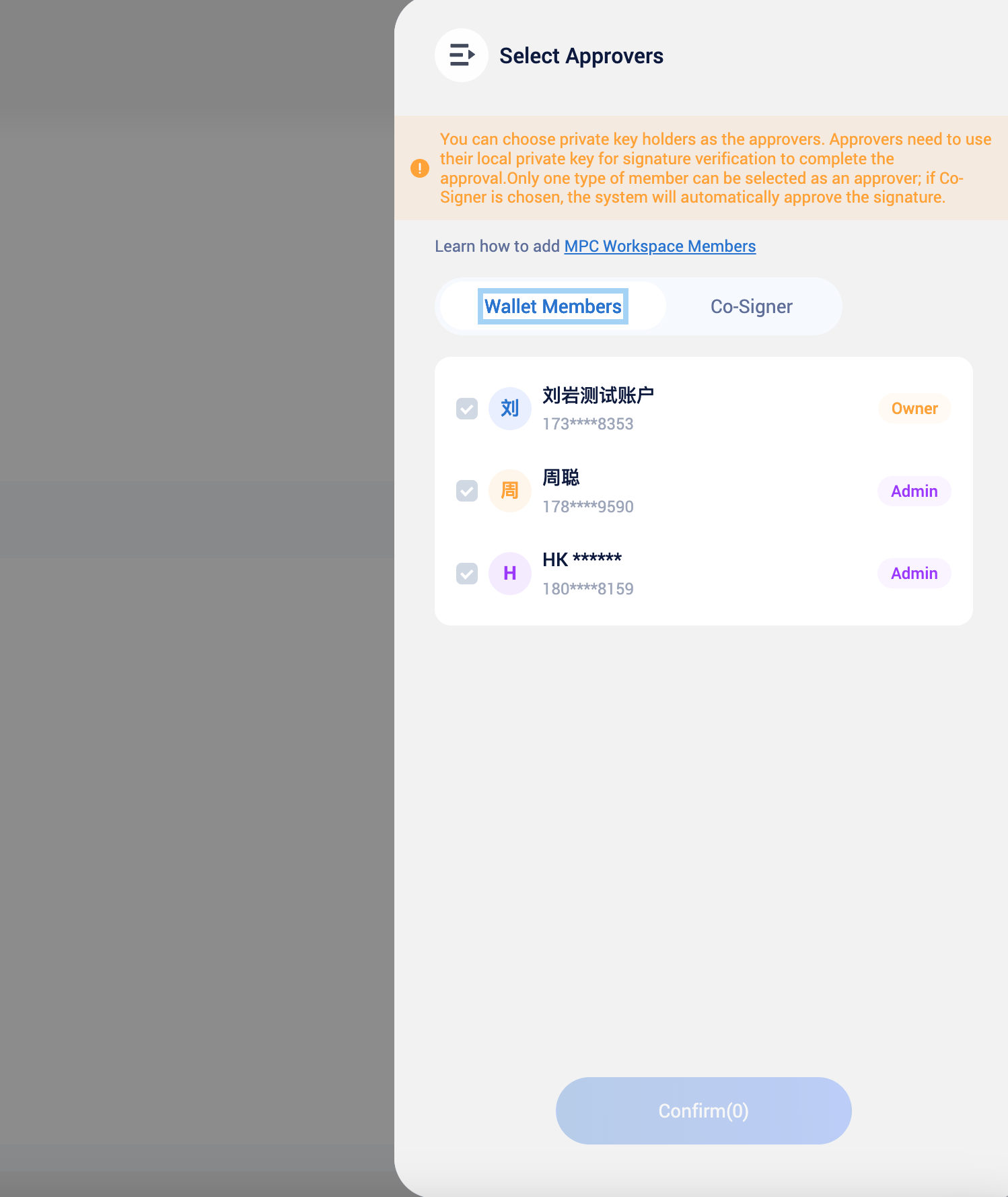
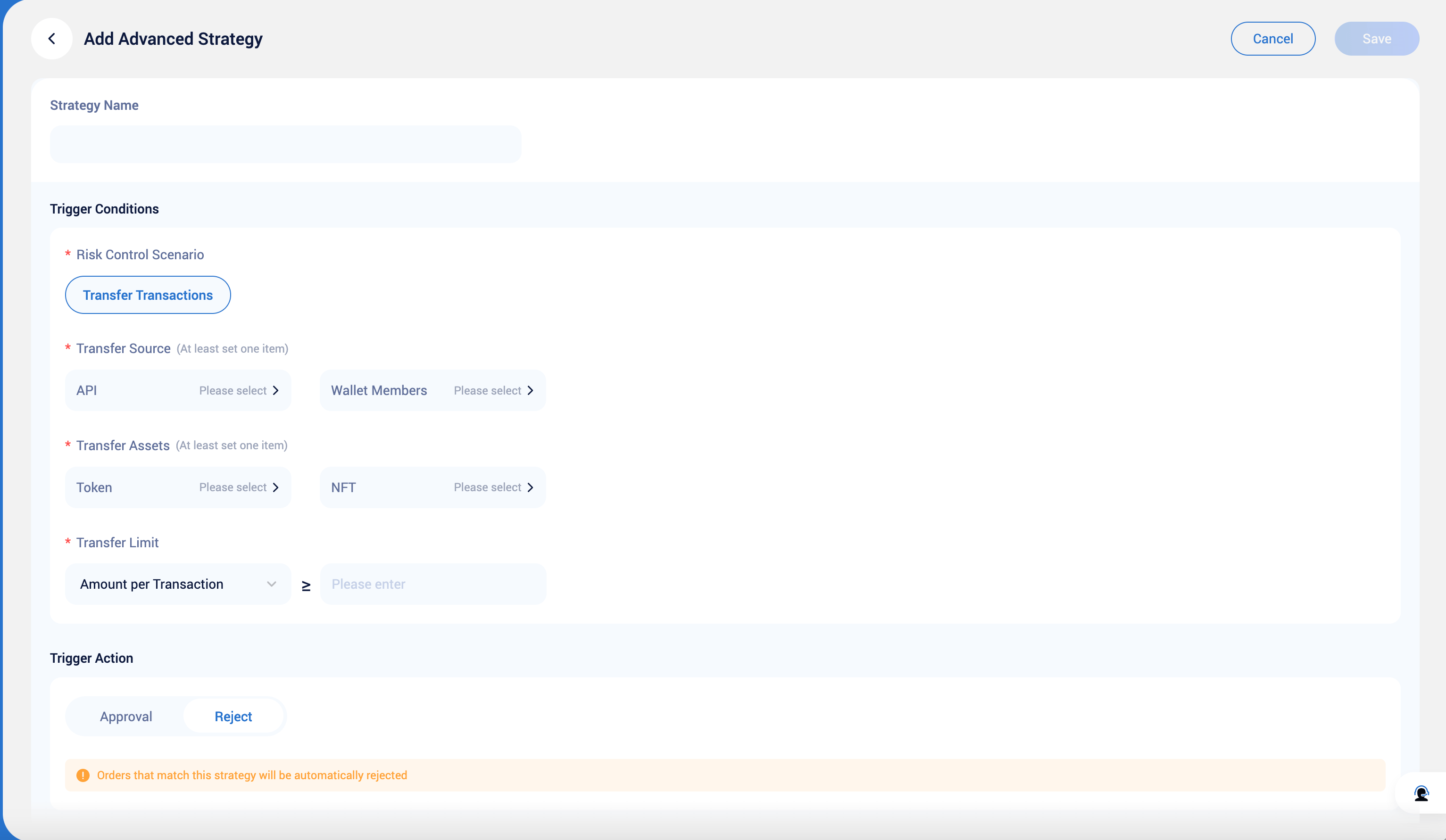
- Transfer asset type
- Transfer initiator
- Transfer limit: The amount of the transaction in crypto coin or its value in USD
- Initiator
- Transaction Scope: Control the contract addresses or domain names that require interaction.
4
Confirm Advanced Strategy Modifications
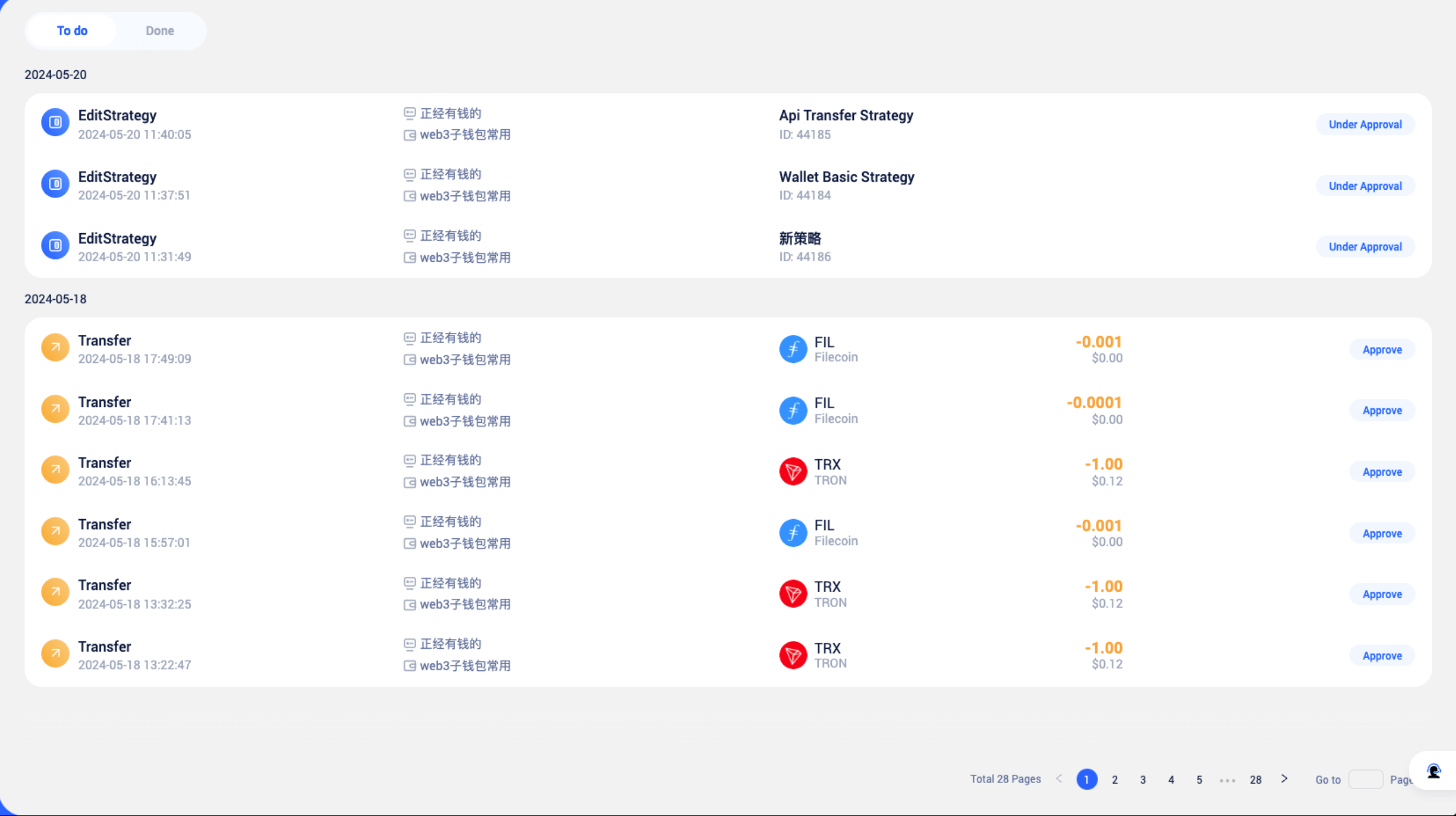
Any additions, deletions, or modifications to Advanced Strategies require approval from the current basic strategy to take effect. If you are an approver of the currently effective basic strategy, you can find the corresponding pending tasks in [Workflow] to process them.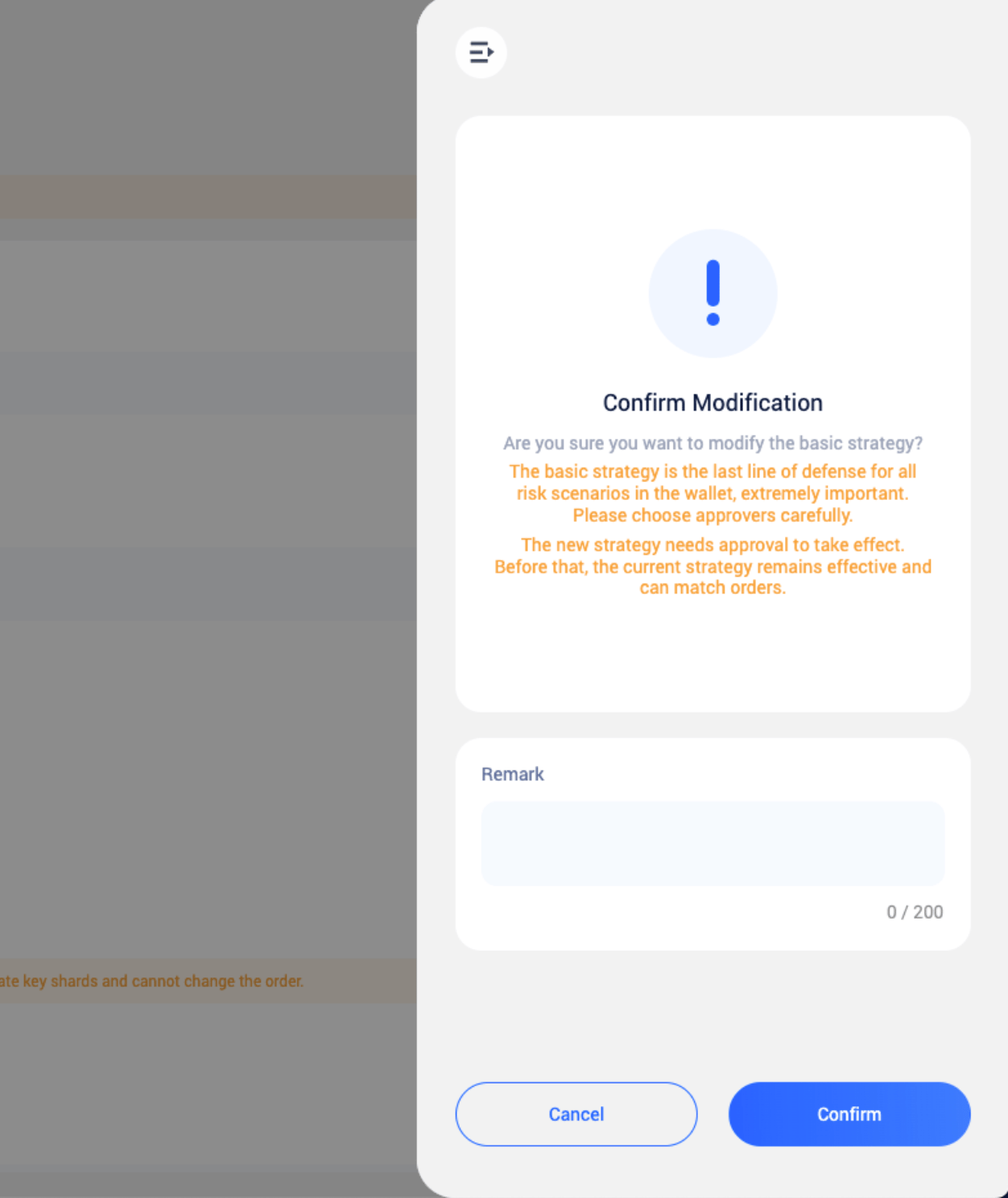
Frequently Asked Questions
Why Can't I Delete or Edit a Specific Advanced Strategy
Why Can't I Delete or Edit a Specific Advanced Strategy
If a user has initiated an editing or deletion request for a specific advanced strategy, other users will be unable to perform the same duplicate operation until that request is approved.
When Will Advanced Strategies Become Invalid?
When Will Advanced Strategies Become Invalid?
Users modify advanced strategies, and after the modification request is approved, the old strategy will automatically become invalid.
Users delete advanced strategies, and after the deletion request is approved, the strategy will become invalid.
How to Obtain Management Permissions for Advanced Strategies?
How to Obtain Management Permissions for Advanced Strategies?
All co-managers of a wallet, including owner, admin, and wallet members, can view and edit the wallet’s advanced strategies.
How to View the Editing History of Advanced Strategies?
How to View the Editing History of Advanced Strategies?
You can click the approving record button in the upper right corner to view all advanced strategy editing records for that wallet.