
Function Introduction
Google Authenticator is a tool that provides two-factor authentication by generating one-time passwords to enhance account security. Once the Google Authenticator is bound, you will need to enter a dynamic six-digit verification code generated by the Google Authenticator when performing sensitive operations.Operation Procedure
To ensure the security of your assets, we require you to bind the Google Authenticator so that you can use the Google verification code when performing key operations.1
Open MPC Workspace
If you are not logged into the MPC Workspace, please log in first.
2
Enter Personal Account Settings
In the MPC Workspace, click on the personal avatar in the upper left corner
3
Select GA Settings
Enter the personal account settings page, select 【GA】.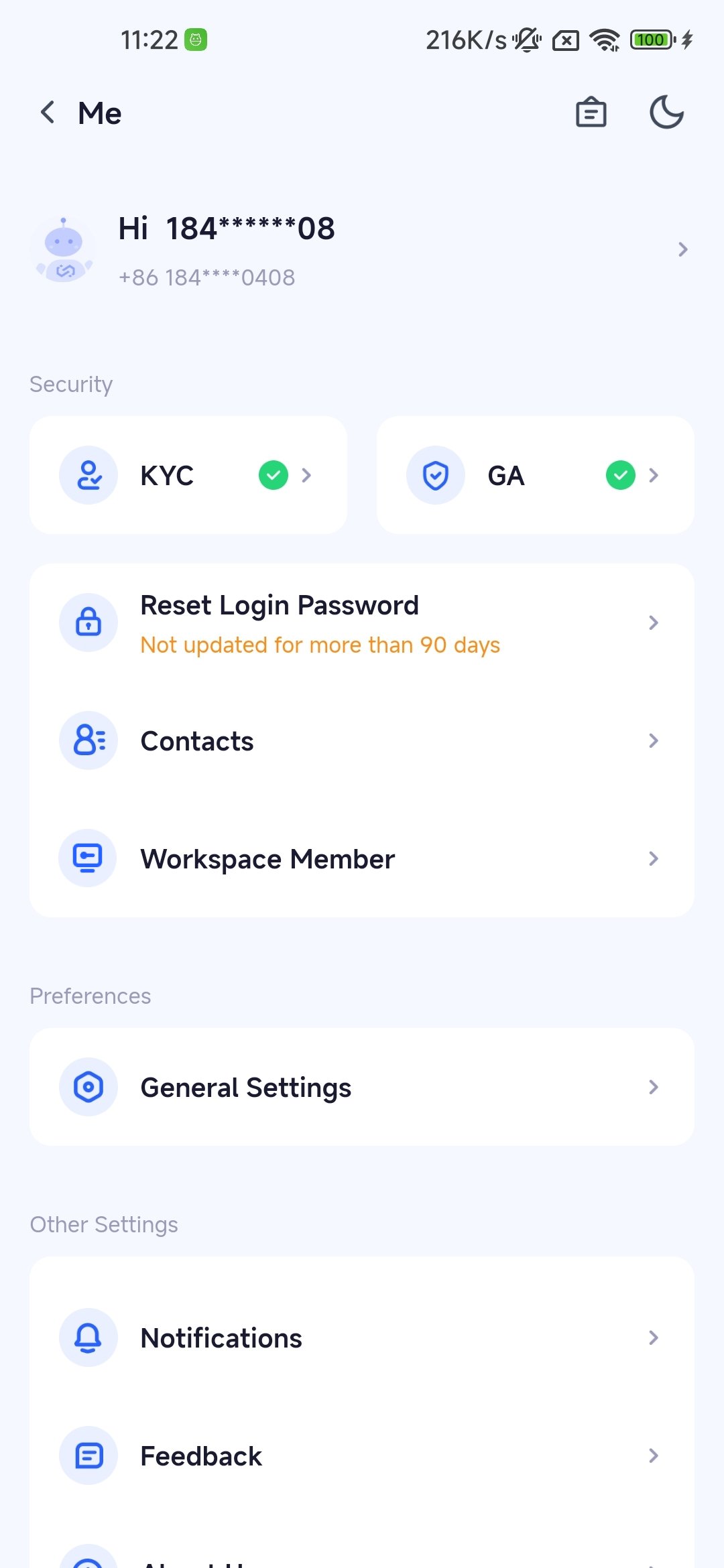
4
Bind Google Verification Page
Copy the key from the Keysecure App and paste the verification code into the Google Authenticator.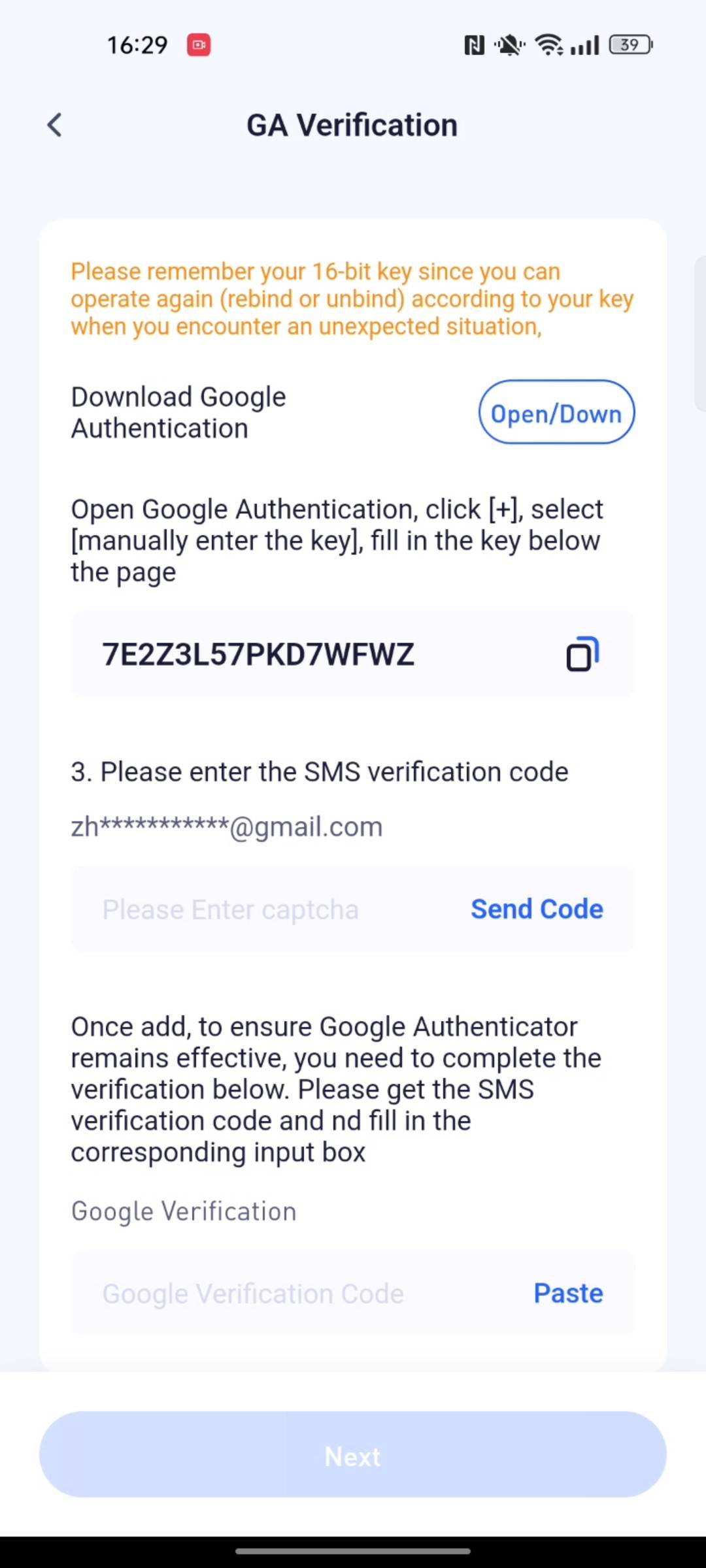
5
Open Google Authenticator APP
In the Google Authenticator APP, choose to enter the setup key
6
Complete Binding
Your Google verification code account is for your own reference and can be customized.
Please confirm that your Google verification code is set based on time.
Complete the binding of the Google Authenticator.
Frequently Asked Questions
Why Do I Need to Bind Google Authenticator?
Why Do I Need to Bind Google Authenticator?
Binding the Google Authenticator is to enhance the security of the account, to perform secondary verification with the Google verification code, and to prevent unauthorized access.
How to Backup Google Verification Code?
How to Backup Google Verification Code?
You can screenshot or manually backup the key of the Google verification code. When changing devices or losing the Google Authenticator, you can use the backup Google Authenticator account key to recover.