
I. Function Introduction
The Manage MPC Workspace feature allows users to manage workspaces and wallets. Users can switch to select the workspace they want to manage, edit the alias of the workspace, view the asset details of the wallet, and switch to select the wallet they want to manage.II. Operation Procedure
Managing Workspace
1
Select Workspace To Manage
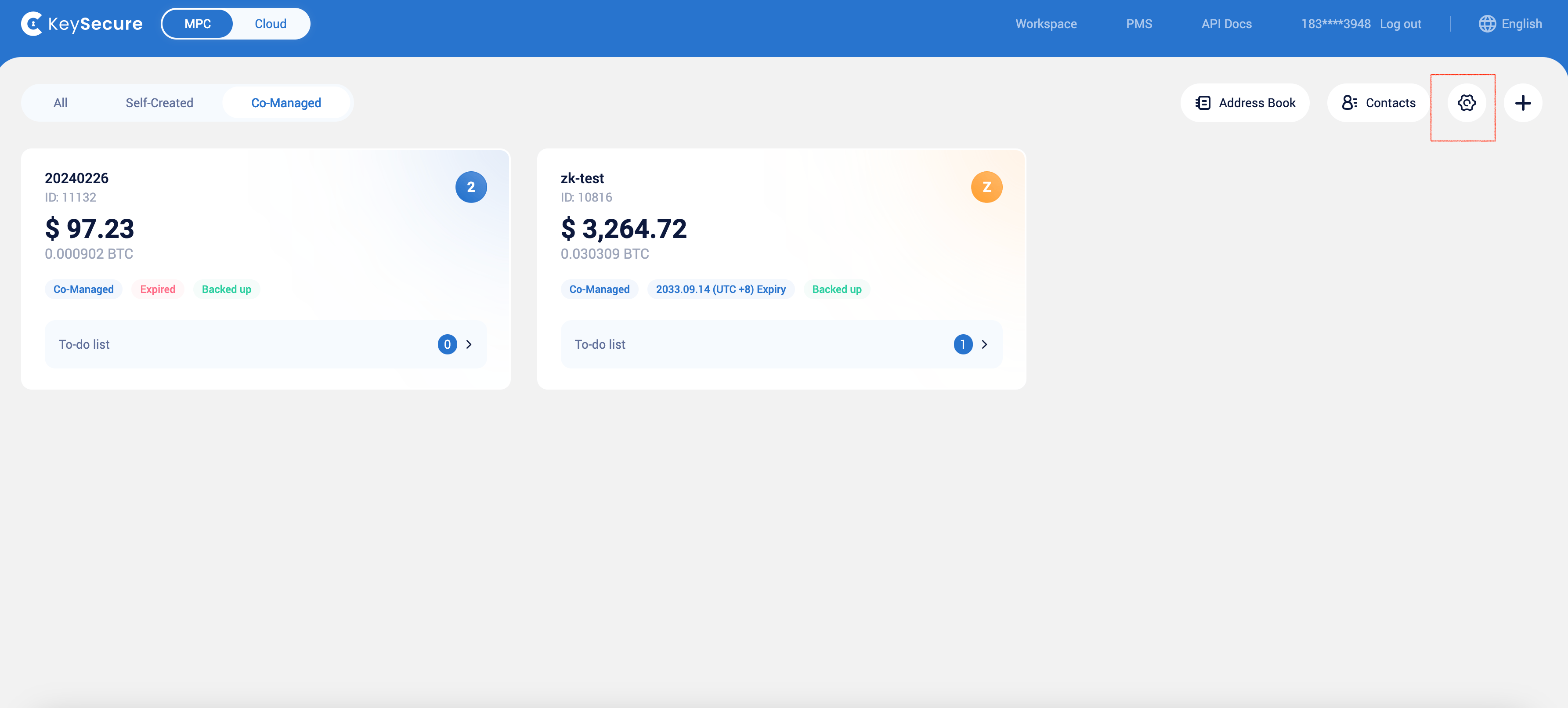
You can switch to select the workspace you want to manage based on the workspace’s creation type.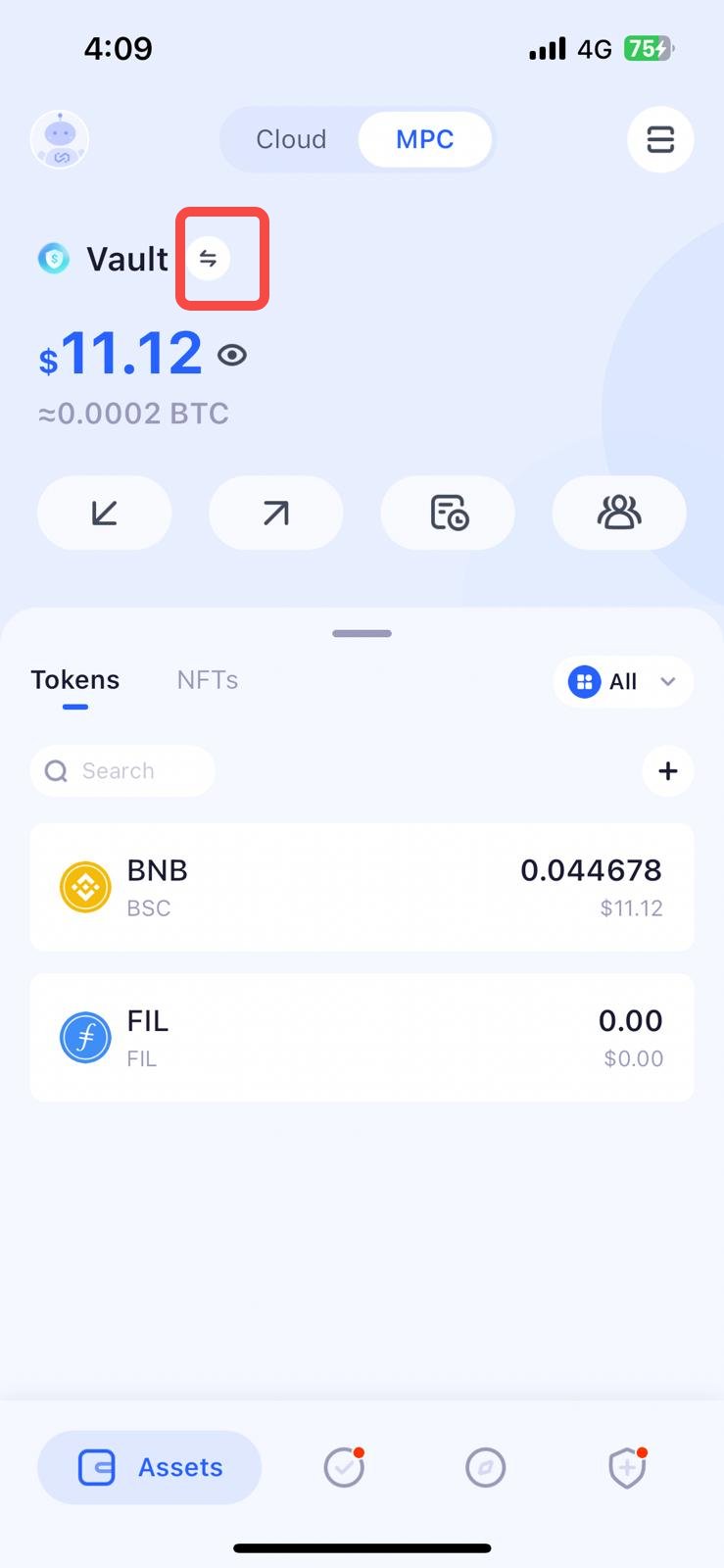
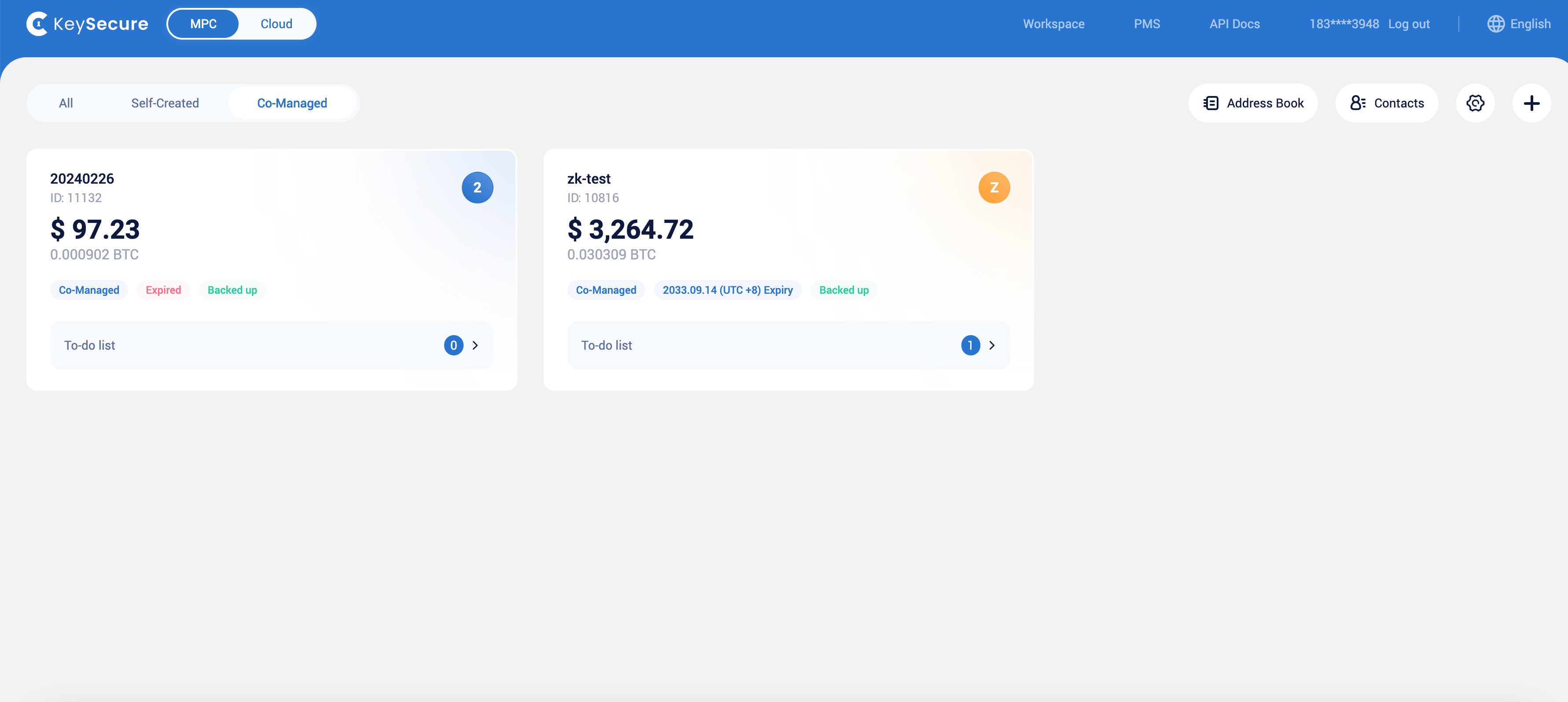
- Created: You are the owner of the workspace
- Co-managed: You have co-management member permissions (Admin or Regular Member)
2
Workspace Edit Page
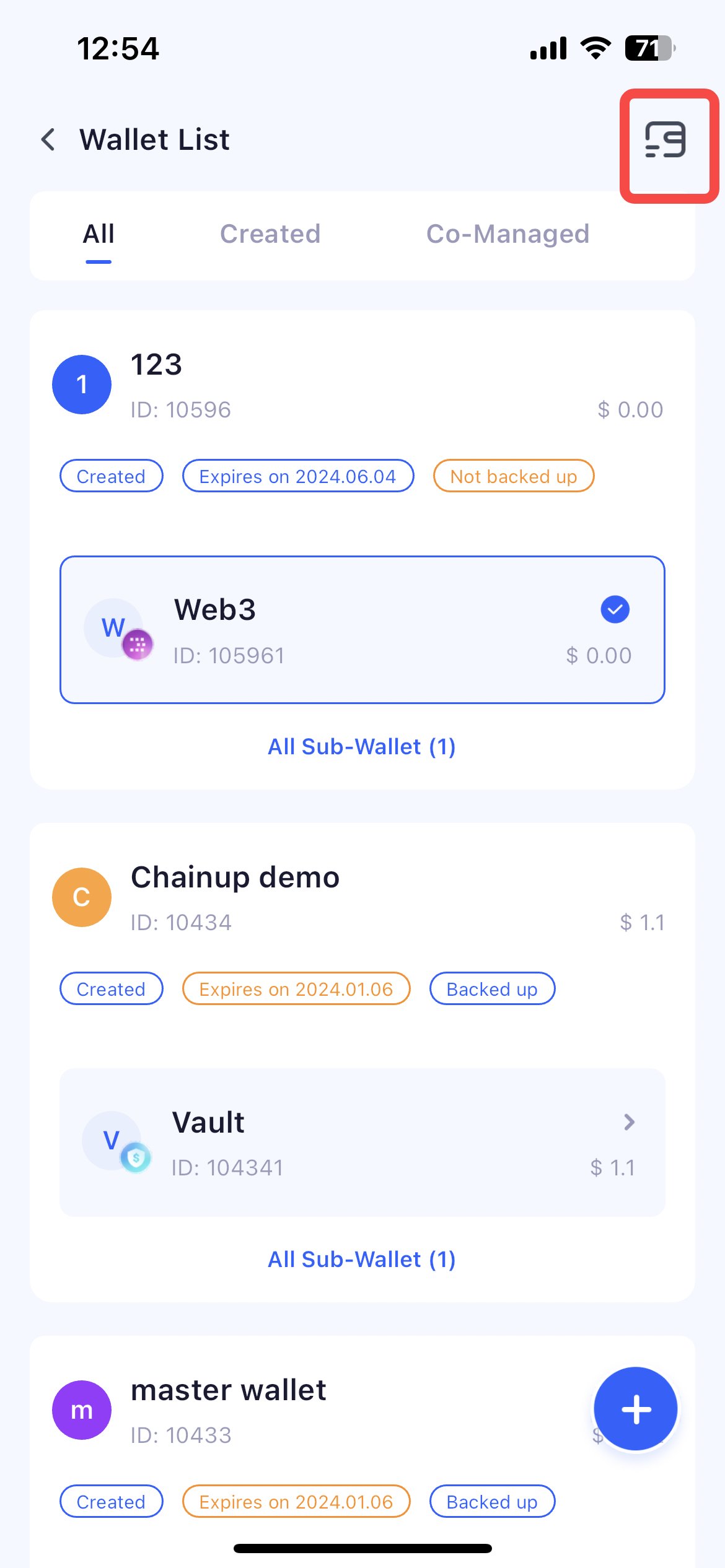
Click on the edit function in the top right corner, and you will enter the workspace edit page.
You can edit the alias and order of all accessible workspaces under your account.Keysecure MPC APP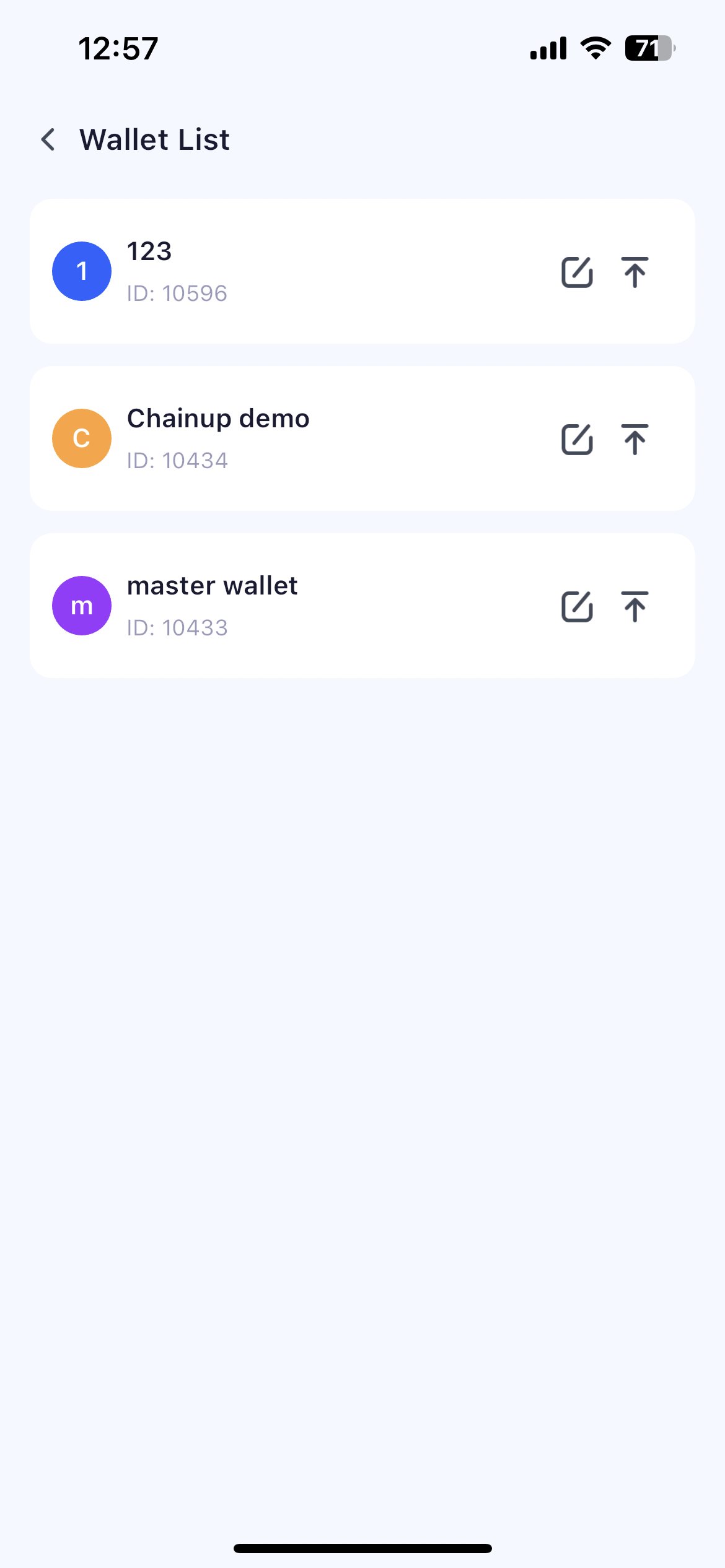
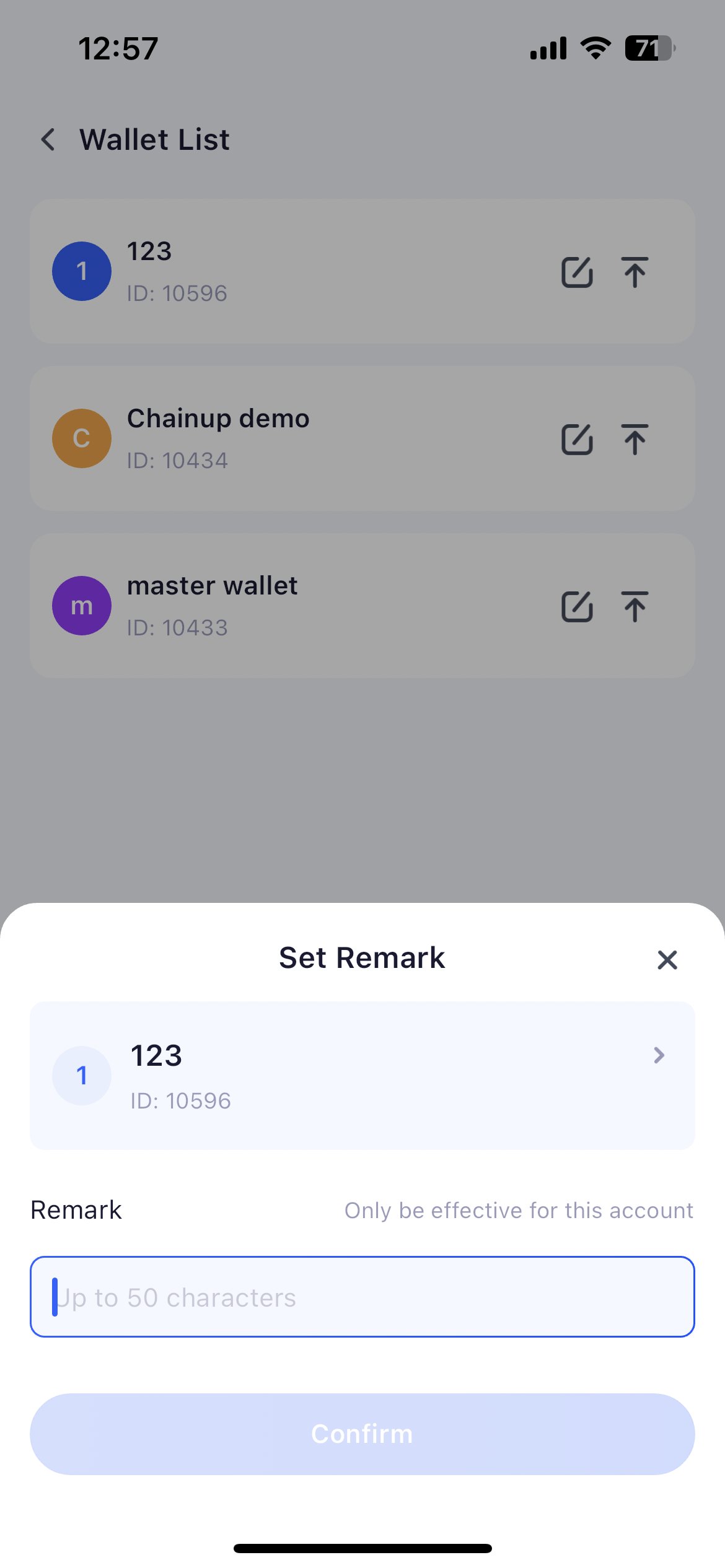
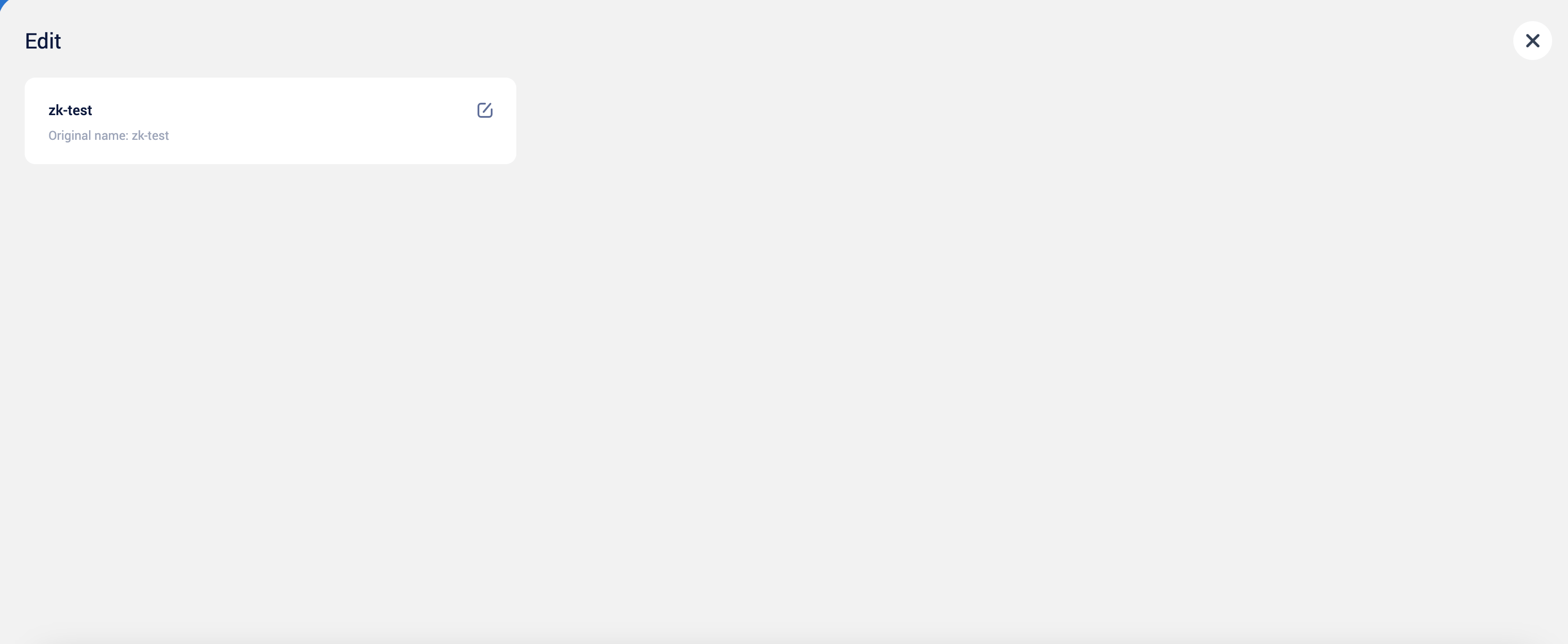
Please note, this alias is only effective for you.
Managing Wallet
1
Select Wallet To Manage
After selecting a workspace, the system will default to select a wallet for you based on your account’s usage habits and the ranking of the wallet assets you manage.You can view the asset details of this wallet. Also, you can click the switch button to search and select the wallet you want to manage.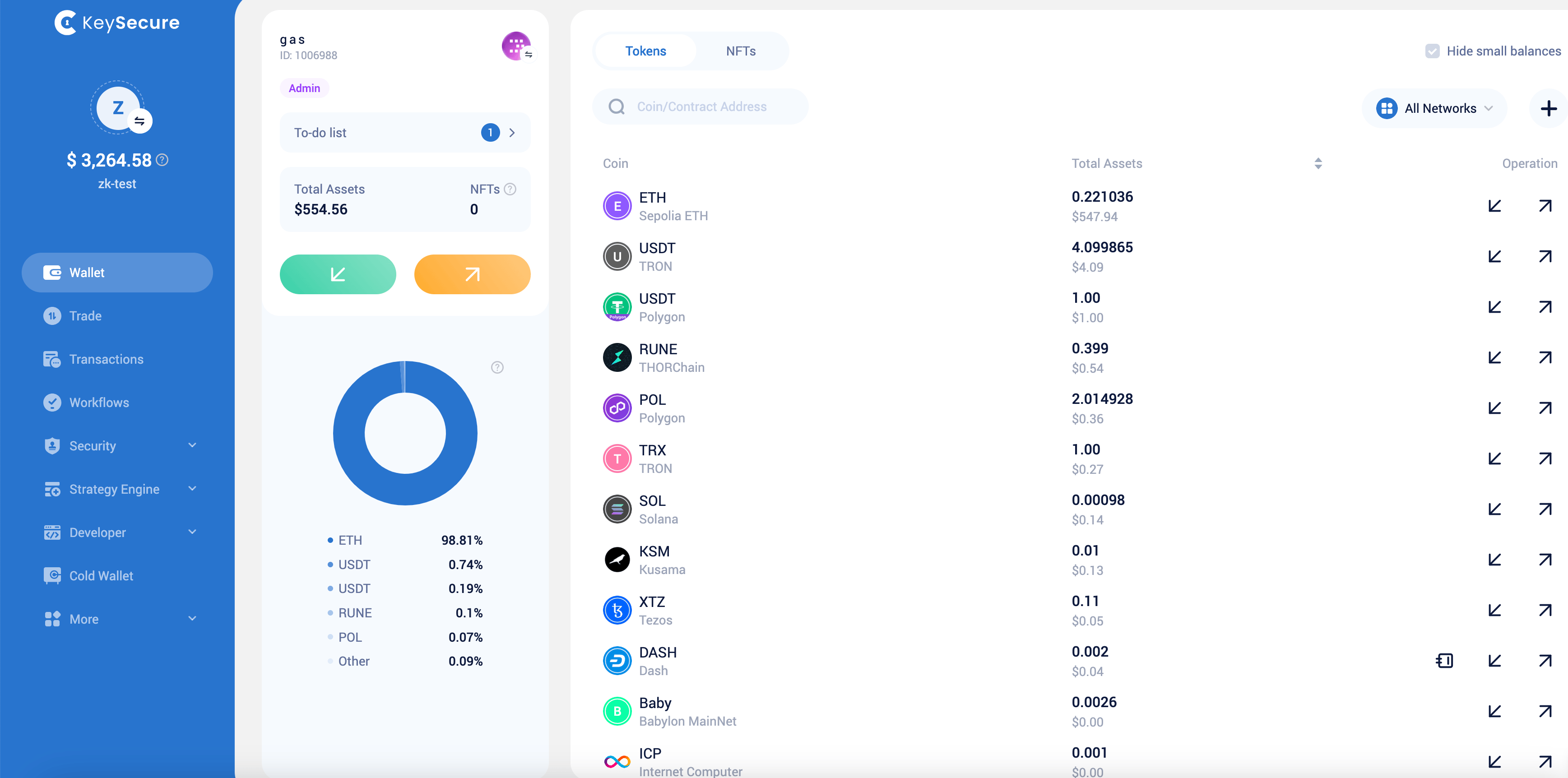
Please note, you can only switch to select the wallet you have permissions for.
2
Wallet Edit Page
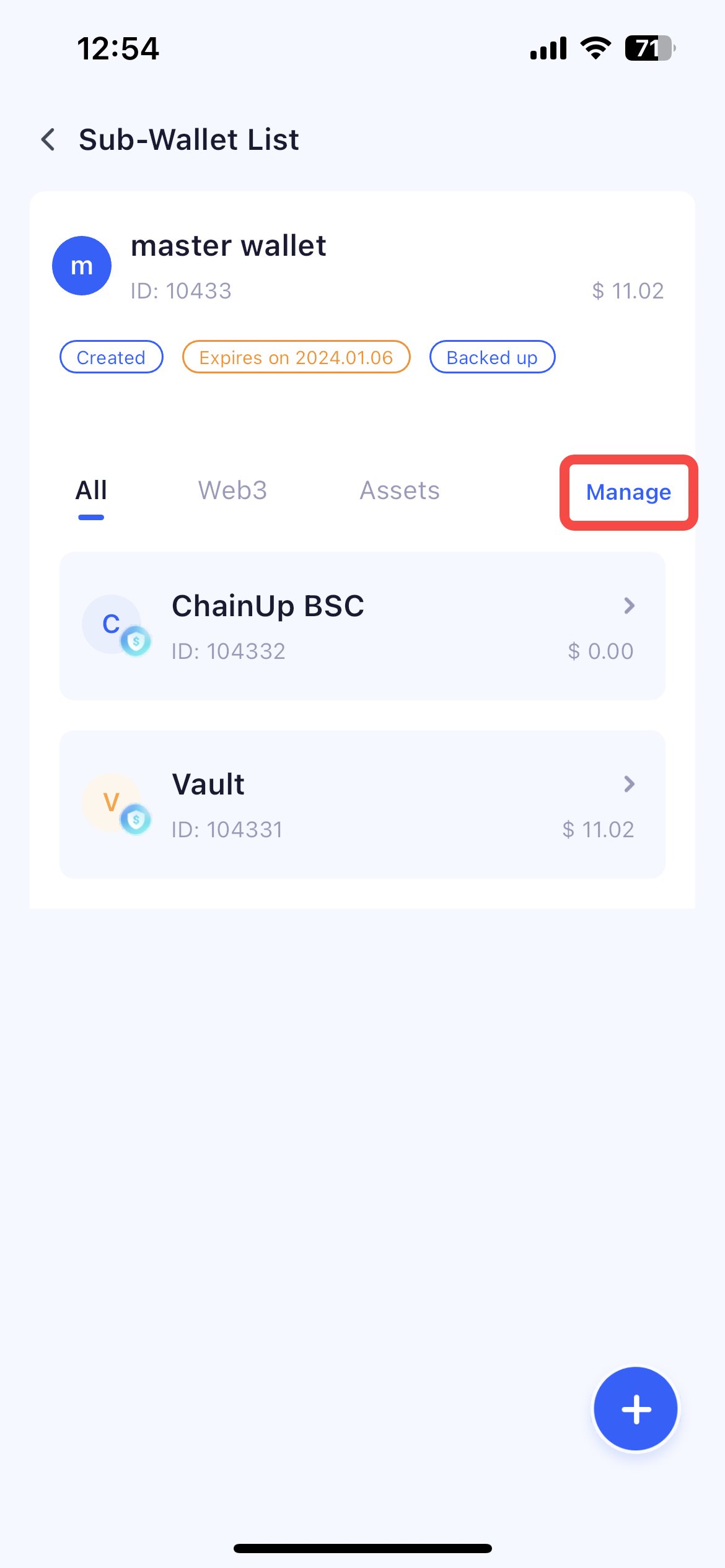
You can manage by entering the wallet edit page through the APP.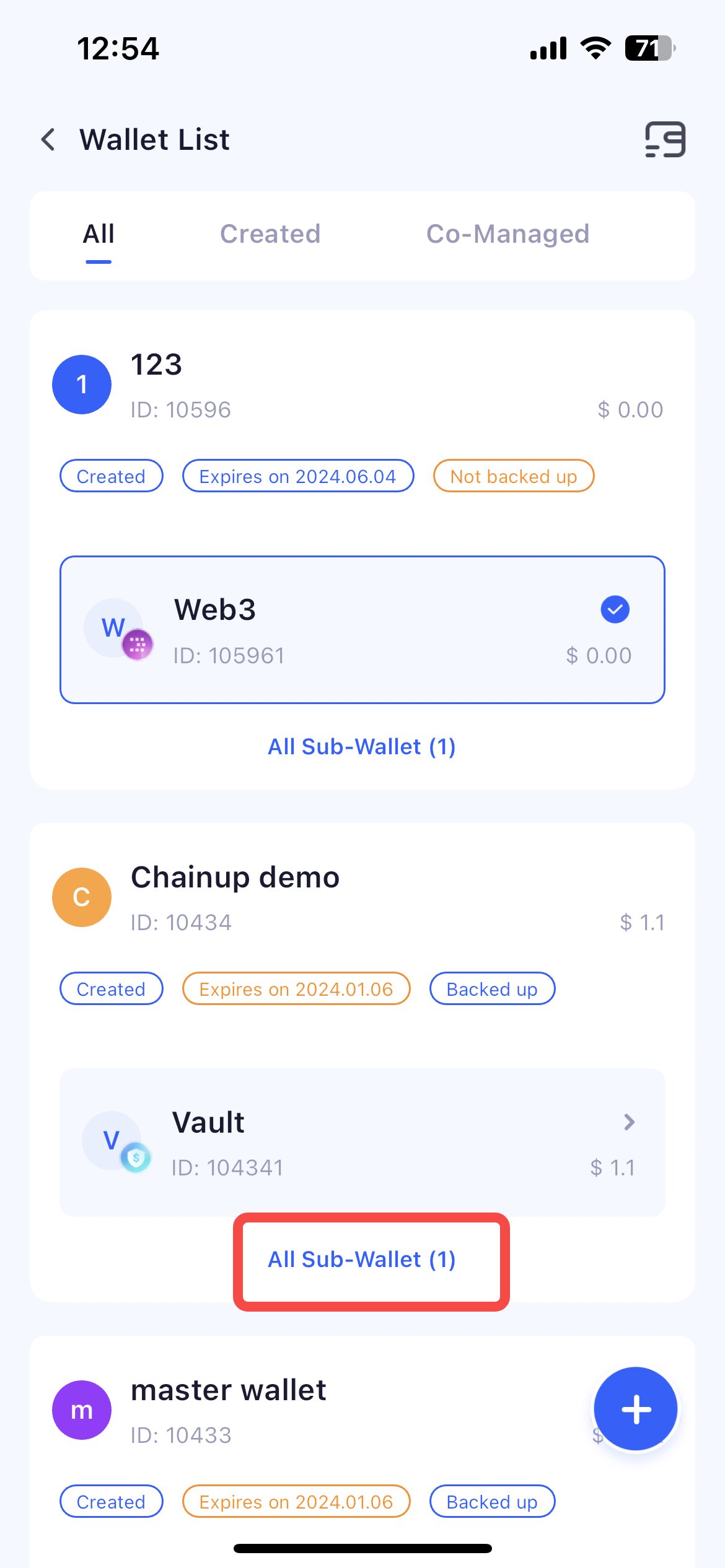
3
Wallet Order and Edit Alias
You can edit the alias for the wallet you manage.
Please note, this alias is only effective for you.
III. Frequently Asked Questions
Why can't I select or edit a certain workspace
Why can't I select or edit a certain workspace
We do not support users to select and perform related operations for workspaces in the following states: workspaces where the private key is being created. Please wait for the private key creation of this workspace to succeed in the App.
How to switch to visit other workspaces
How to switch to visit other workspaces
You can click the MPC button at the top to return to the homepage: select other workspaces. When you have entered the feature management page of a certain workspace, you can return to the homepage by clicking the workspace switch button in the upper left corner.
How to obtain permissions for other workspaces/wallets
How to obtain permissions for other workspaces/wallets
In the workspace you created, you will be granted full management permissions for all wallets under this workspace. For the workspace you co-manage, your permissions will be determined by the owner of the workspace.