
Function Introduction
You can view and handle pending tasks related to your account. The type of your pending tasks will depend on your account role in the selected workspace.Operation Procedure
Workflow: To-Do
Viewing To-Do Information
In the APP, you can enter the “Workflow” page through the bottom navigation, select the “To-Do” module, and view and handle all the workspace to-do information you need to process.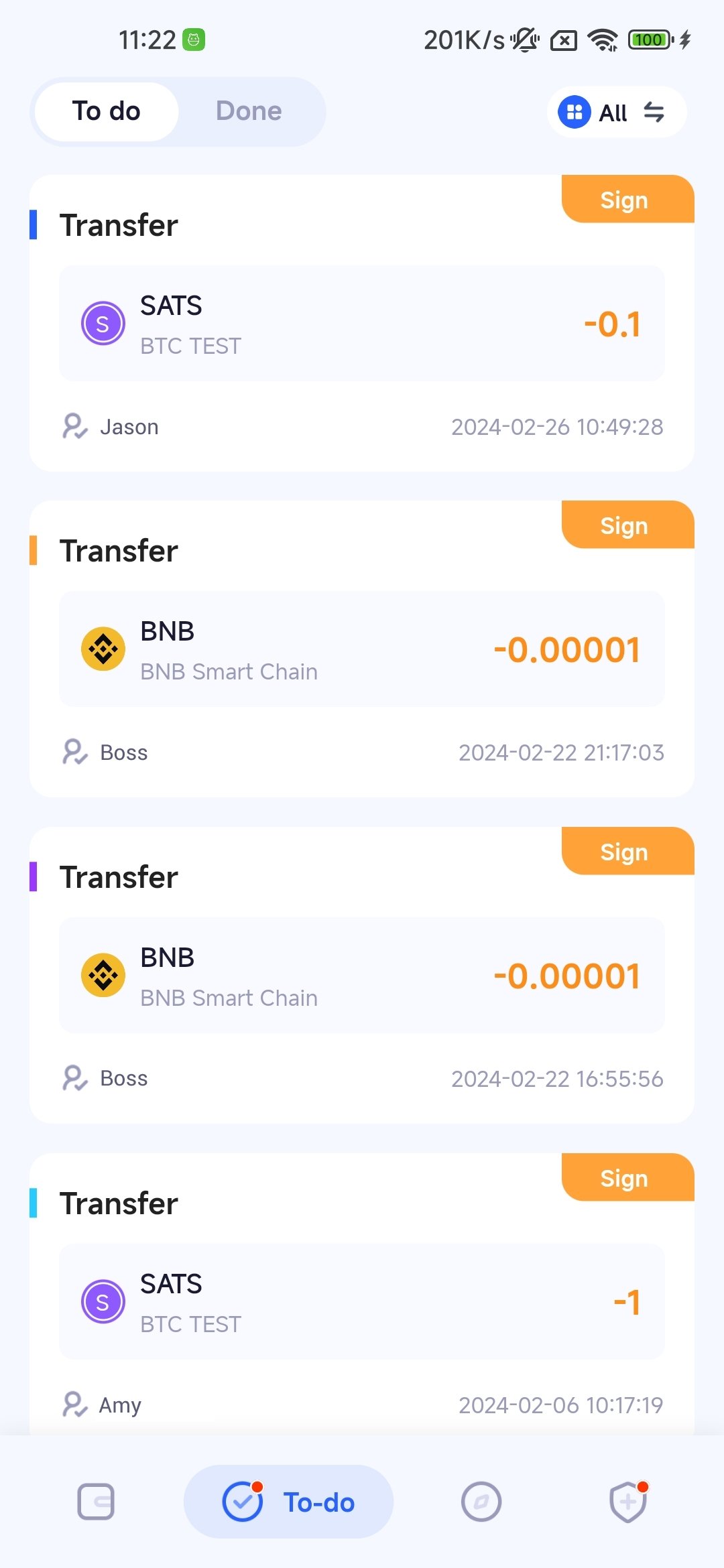
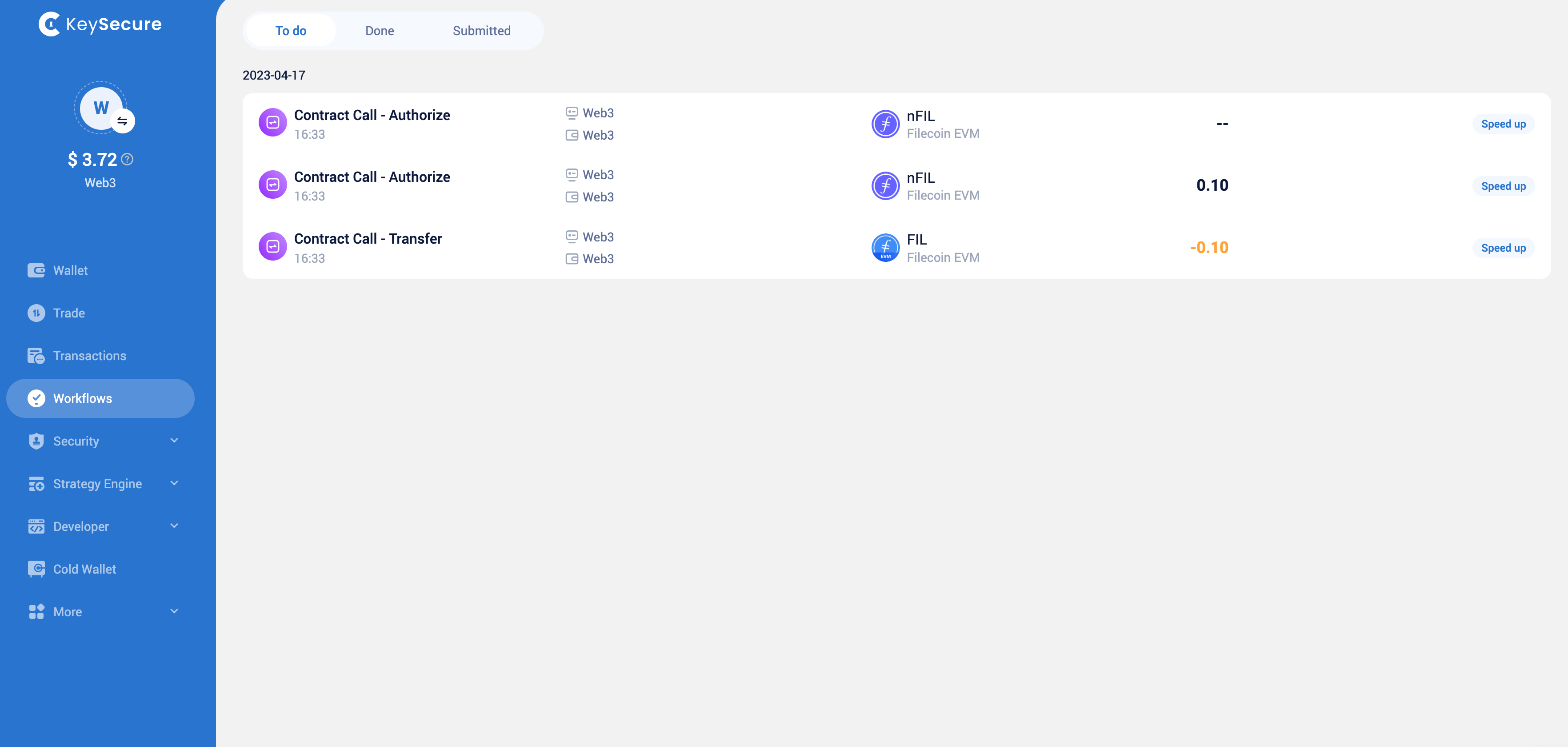
Handling Operational To-Do
The type of to-do items you can operate depends on your account role in the selected workspace. Approval members can approve transactions, agree or refuse transactions, confirm or cancel collection and gas station configuration. Workspace owners and admins can cancel transactions, sign transactions, accelerate transactions, etc. Admins can also receive equal-rights private keys in this module.Workflow: Done
Viewing Done Information
You can enter the “Workflow” page in the App or Web system, select the “Done” module, and view the task records you have processed in the past.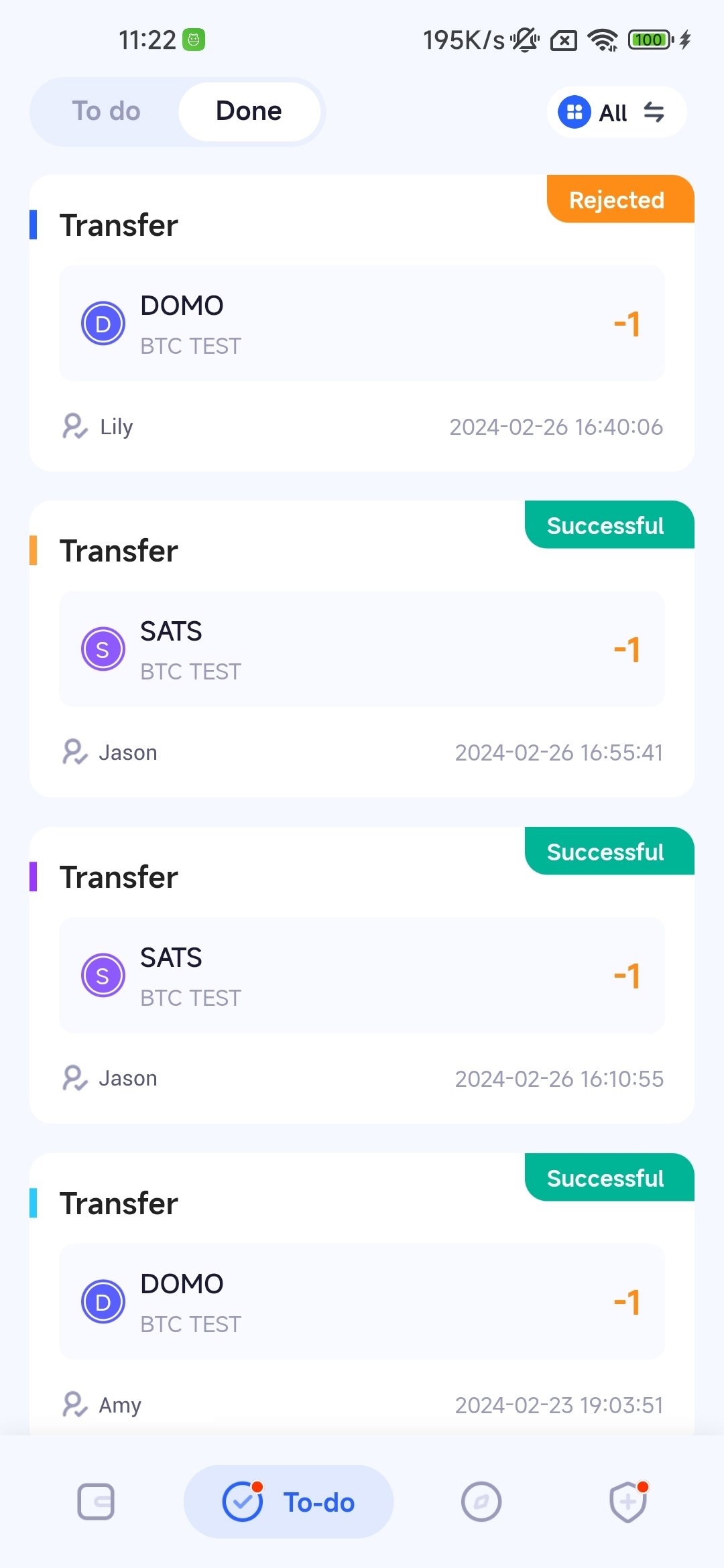
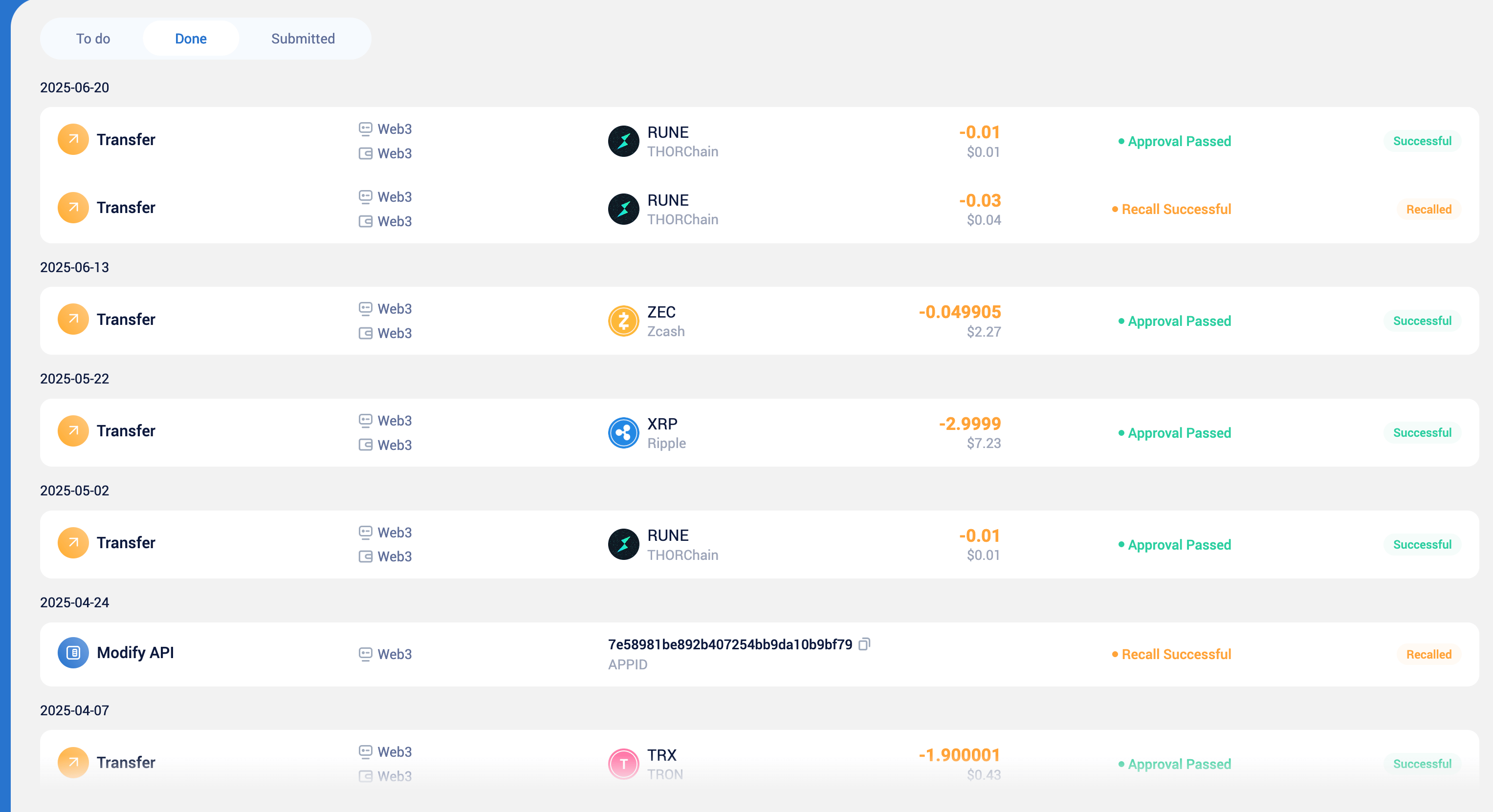
Workflow: Submitted
View the applications submitted by the current account.
You can go to the [Workflow] page in the App or Web system, select the [Submitted] module, and view the approval requests you have initiated, as well as track their approval progress.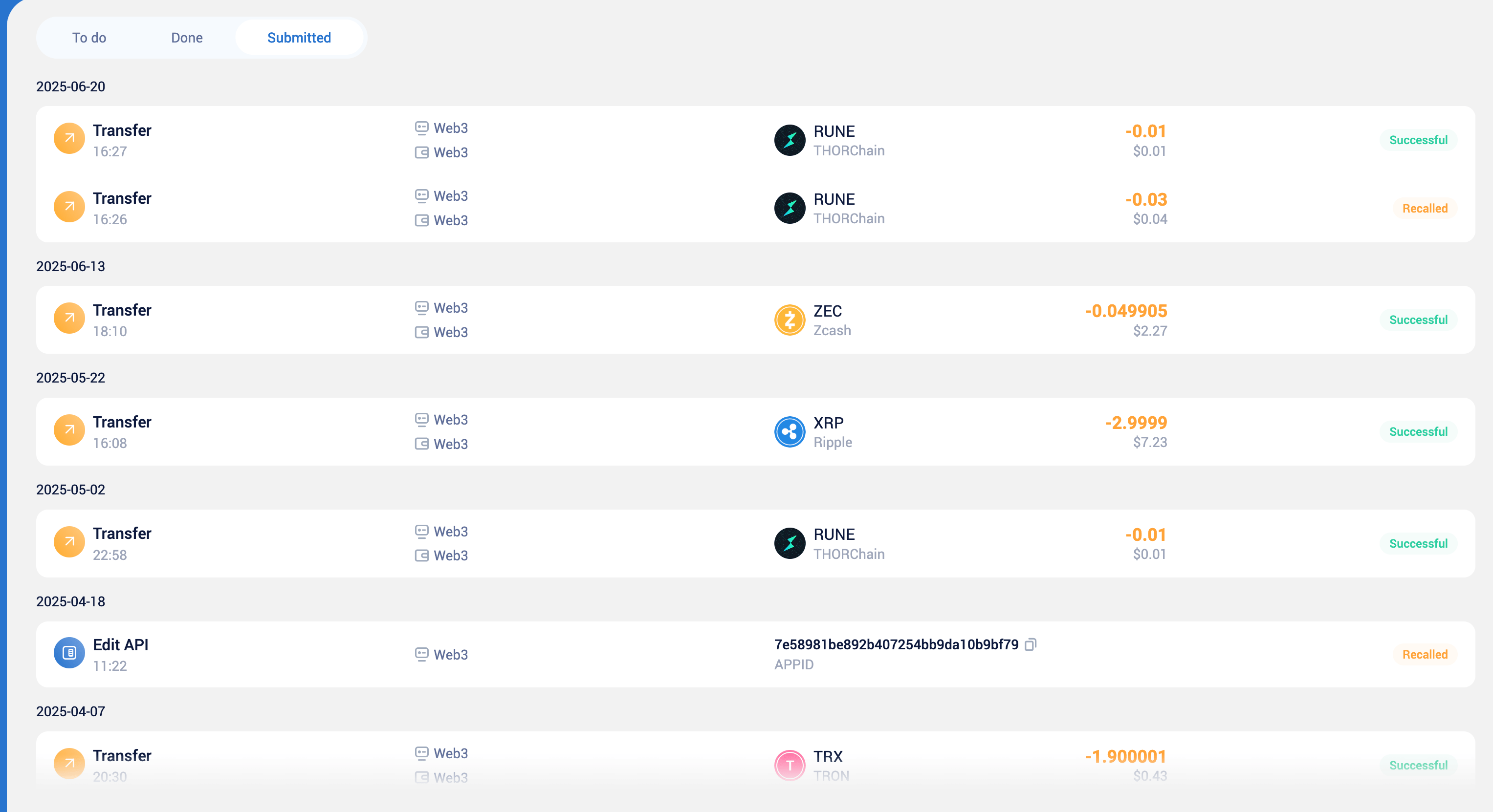
Frequently Asked Questions
How can I view the workflow of other workspaces?
How can I view the workflow of other workspaces?
You can click the MPC button at the top of the page, or click the workspace switch button on the left. After switching to other workspaces, you can enter the operational to-do module of that workspace to view.
As a admin, can I recover and backup the private key myself?
As a admin, can I recover and backup the private key myself?
Admin cannot recover the private key. You need to contact the workspace owner to resend the private key.
Why can't I complete the tasks waiting for signature and acceleration by scanning the QR code of the to-do item?
Why can't I complete the tasks waiting for signature and acceleration by scanning the QR code of the to-do item?
Please confirm the following points:
- You are the owner of the workspace;
- The device you are using has backed up the local private key;
- The QR code has not expired.